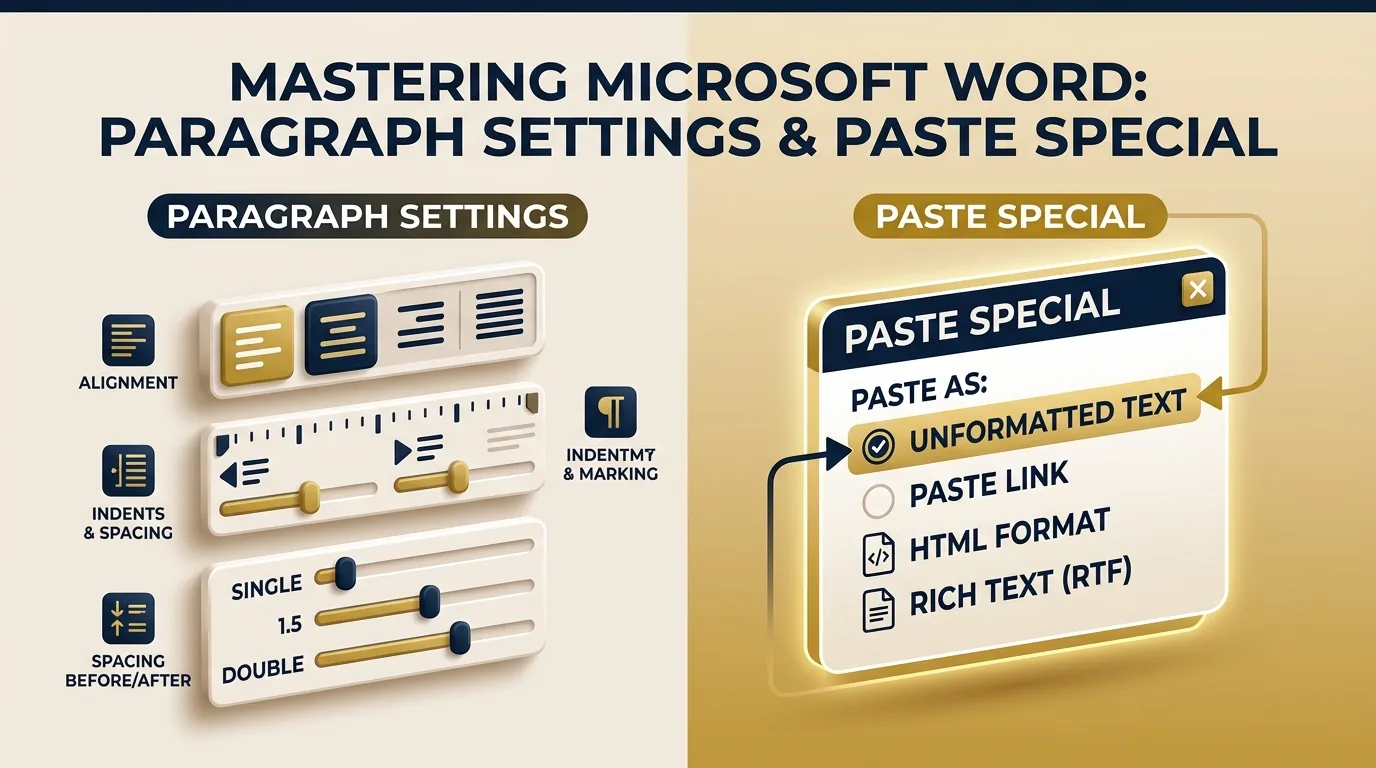
MS Word • Module Notes: Paragraph Setting + Paste Special
Comprehensive DCA, PGDCA, and BCA university exam study guide covering alignment, indentation (First Line vs Hanging), line spacing, and advanced Paste Special options (Ctrl+Alt+V, Paste Link, Unformatted Text).
Faculty Expert Insight (Exam & Viva Priority)
In university examinations (DCA/PGDCA/BCA), examiners frequently test the distinction between First Line Indent (indents line 1 only) and Hanging Indent (indents lines 2+). Also remember key shortcuts: Alt+H, P, G for Paragraph Dialog Box launcher and Ctrl+Alt+V for Paste Special.
Paragraph Setting is the group of formatting controls (alignment, indentation, spacing before/after, and line spacing) that determine how a paragraph appears on the page.
Paste Special (Ctrl+Alt+V) is an advanced paste feature letting users choose the exact format (plain text, picture, RTF, or live linked object) to insert copied content.
A(a) Paragraph Setting
Alt + H, P, G1. Meaning & Definition
Paragraph Setting refers to a set of formatting options in MS Word that control the layout, position, and vertical spacing of a paragraph. It includes horizontal text alignment, left/right margins indentation, paragraph spacing before/after, and vertical line spacing within the paragraph. Access these controls under Home tab → Paragraph group or via the Paragraph Dialog Box.
2. How to Open the Paragraph Dialog Box
- Click anywhere inside the target paragraph (or select multiple paragraphs).
- Navigate to the Home tab on the Ribbon.
- Locate the Paragraph group.
- Click the small Dialog Launcher arrow (↘) at the bottom-right corner of the Paragraph group, OR press Alt + H, P, G.
- The Paragraph dialog box opens with two main tabs: 'Indents and Spacing' and 'Line and Page Breaks'.
3. Key Options Inside Paragraph Setting
| Option | Function & Purpose |
|---|---|
| Alignment | Left (Ctrl+L), Center (Ctrl+E), Right (Ctrl+R), or Justify (Ctrl+J) — controls horizontal text alignment between margins. |
| Indentation (Left/Right) | Moves the entire paragraph inward from the left or right page margin by a specific distance. |
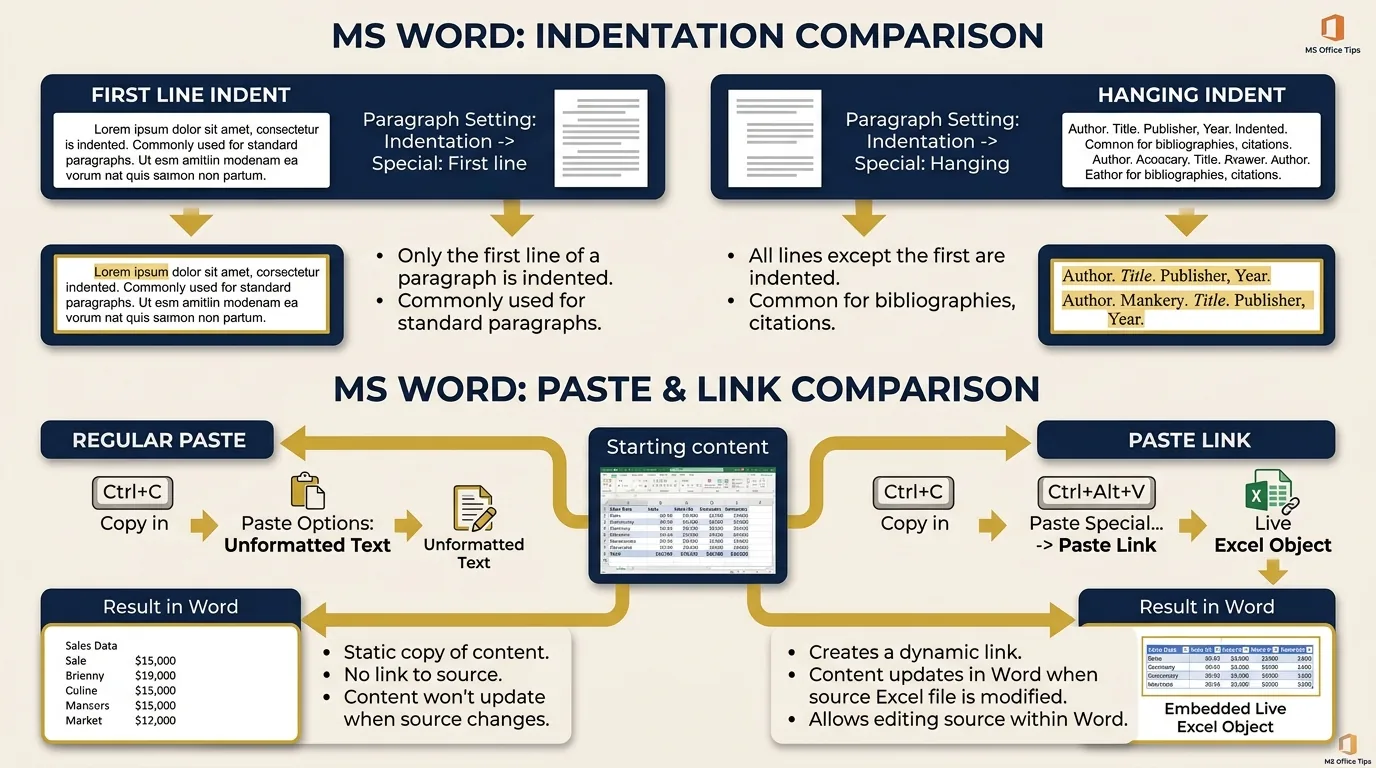
| Special — First Line Indent | Indents ONLY the first line of the paragraph inward (traditional standard book style). |
| Special — Hanging Indent ⭐ | Indents EVERY line EXCEPT the first line (commonly used in bibliography, citations, and bullet points). |
| Spacing Before / After | Adds vertical blank space above (Before) or below (After) the paragraph, measured in points (pt). |
| Line Spacing | Controls vertical space between text lines inside the paragraph: Single, 1.5 lines, Double, At Least, Exactly, Multiple. |
| Widow/Orphan Control | Prevents a single line of a paragraph from remaining isolated at the top or bottom of a page. |
| Page Break Before | Forces the designated paragraph to always begin on a fresh new page. |
📐First Line Indent vs Hanging Indent Visual Guide
First Line Indent:
▶ This first line is indented.
All subsequent lines start flush
at the standard left margin.
Hanging Indent:
First line starts at margin.
▶ Line 2 is indented inward.
▶ Line 3 is also indented.
B(b) Paste Special
Ctrl + Alt + V1. Meaning & Definition
Paste Special is an advanced feature in MS Word that allows users to select the exact data format in which copied or cut content (from Word, Excel, web browsers, or other apps) is inserted into a document — rather than automatically pasting with default formatting like regular Paste (Ctrl+V) does.
2. Why It Is Needed
When text or tables are copied from external sources (e.g., websites or formatted PDFs), a regular paste carries unwanted fonts, background colors, and web styles that clash with your document. Paste Special solves this by letting you paste as Unformatted Text, matching destination styles, static images, or live dynamic links.
3. Procedure to Use Paste Special
- Select and Copy (Ctrl+C) or Cut (Ctrl+X) the target content from the source.
- Click at the exact insertion point in your MS Word document.
- Go to Home tab → click the small drop-down arrow below the Paste icon → select 'Paste Special' (OR press Ctrl + Alt + V).
- The Paste Special dialog box opens displaying available data formats.
- Choose your desired format (e.g., Unformatted Text, Picture, Excel Object) and click OK.
4. Common Paste Special Format Options
| Format Option | Result & Behavior |
|---|---|
| Unformatted Text | Pastes raw plain text only, removing all original fonts, colors, styles, and web formatting. |
| Formatted Text (RTF) | Pastes text retaining its original font formatting, bolding, colors, and line breaks. |
| Picture / Bitmap | Pastes the copied content as a static image graphics object (cannot edit text inside). |
| Microsoft Excel Object | Embeds Excel worksheet data into Word allowing in-place Excel formula editing. |
| Paste Link (Dynamic OLE) ⭐ | Establishes a live connection to the source file; content auto-updates in Word if the source changes! |
5. Regular Paste (Ctrl+V) vs Paste Special (Ctrl+Alt+V)
| Feature | Regular Paste (Ctrl+V) | Paste Special (Ctrl+Alt+V) |
|---|---|---|
| Shortcut Key | Ctrl + V | Ctrl + Alt + V |
| Format Selection | Uses default format automatically | User manually picks format from list |
| Live Linking | Static copy only (No updates) | Paste Link enables live auto-updates |
Visual Concept Diagram: Indentation & Paste Link Workflow
Key Takeaways & Quick Exam Summary
- ✓Paragraph Setting = Alignment + Indentation + Spacing Before/After + Line Spacing.
- ✓Paragraph dialog box launcher shortcut: Alt + H, P, G.
- ✓First Line Indent indents line 1 only; Hanging Indent indents lines 2+ (used in bibliographies).
- ✓Paste Special shortcut: Ctrl + Alt + V.
- ✓Unformatted Text removes all web/source styling; Paste Link creates a dynamic live-updating connection.
Practice MCQs (Click to Check Answers)
Test your knowledge with these university exam questions.