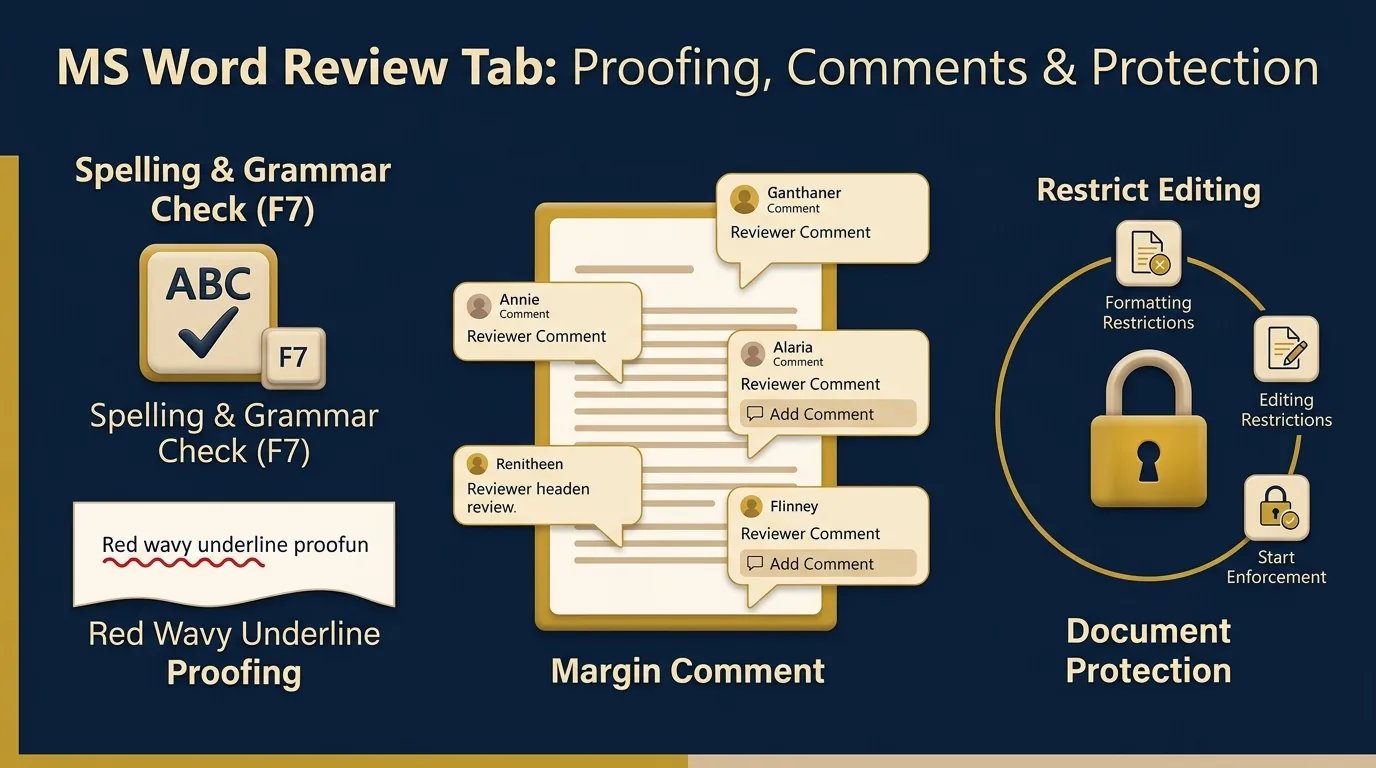
MS Word Review Tab: Spelling & Grammar Check, Comments & Document Protection
Master document proofreading, linguistic validation (F7 & Shift+F7), collaborative margin commenting (Ctrl+Alt+M), and password-enforced Restrict Editing security for your college theory exams and viva voce.
Faculty Expert Insight (Exam Focus)
In PGDCA/DCA theory examinations, questions on the Review Tab frequently ask for direct shortcut keys (F7 for Proofing, Shift+F7 for Thesaurus, Ctrl+Alt+M for Comments), the exact meaning of Red vs Blue/Green wavy underlines, and step-by-step procedures for Restrict Editing and Password Protection.
📑 Fast Index: Table of Contents
11. Introduction to the Review Tab
Definition: The Review Tab on the MS Word Ribbon is dedicated to document validation, linguistic proofreading, collaborative feedback, change tracking, and access security.
Before finalizing, printing, or publishing a document, the Review Tab ensures that content is free of typographical errors, structured with collaborative reviewer feedback, and secured against unauthorized modifications.
The MS Word Review Tab manages document proofing, spell checking (F7), margin comments (Ctrl+Alt+M), track changes, and security restrictions. It guarantees linguistic accuracy and protects documents against unauthorized editing prior to final printing or distribution.
MS WORD REVIEW TAB RIBBON ARCHITECTURE
Proofing Group
Spelling & Grammar (F7), Thesaurus (Shift+F7), Word Count
Comments Group
New Comment (Ctrl+Alt+M), Delete, Previous, Next
Protect Group
Restrict Editing, Password Enforcement, Block Authors
22. Proofing Group: Spelling and Grammar Check
Definition: The Spelling & Grammar Check engine automatically evaluates document text against built-in language dictionaries and grammatical rules to maintain professional writing standards.
Proofing Shortcut Key
Launches Spelling & Grammar Pane
Thesaurus Shortcut Key
Opens Synonyms & Antonyms Lookup
PROOFING COLOR INDICATORS
- Red Wavy LineSpelling Error — Flagged when a word is not found in the MS Word standard built-in dictionary.
- Blue / Green Wavy LineGrammatical Error — Indicates syntax mismatches, wrong tense usage, or punctuation inconsistencies.
Operational Actions in the Proofing Task Pane:
Leaves the highlighted occurrence unchanged and proceeds directly to the next error.
Skips all matching occurrences of the highlighted word across the entire document.
Saves custom names or jargon permanently into custom dictionary so they are never flagged again.
Replaces the flagged word with the selected dictionary suggestion individually or in batch.
33. Comments Group: Adding & Managing Comments
Definition: A Comment is an anchored side-note or margin annotation attached to a specific word, phrase, or paragraph, allowing collaborators to provide non-destructive feedback without altering original body text.
New Comment Shortcut Key
Inserts a new margin balloon anchored to highlighted selection
COLLABORATIVE COMMENTING WORKFLOW
Key Tools in the Comments Group:
- ✓New Comment: Inserts a balloon note linked directly to the highlighted text selection.
- ✓Delete / Delete All Comments: Removes the currently selected comment balloon, or provides a drop-down option to Delete All Comments in Document.
- ✓Previous / Next: Jumps back and forth sequentially between comments across multi-page files.
- ✓Show Comments: Toggles the visibility of margin balloons and the Reviewing Task Pane.
44. Protect Group: Restrict Editing & Document Security
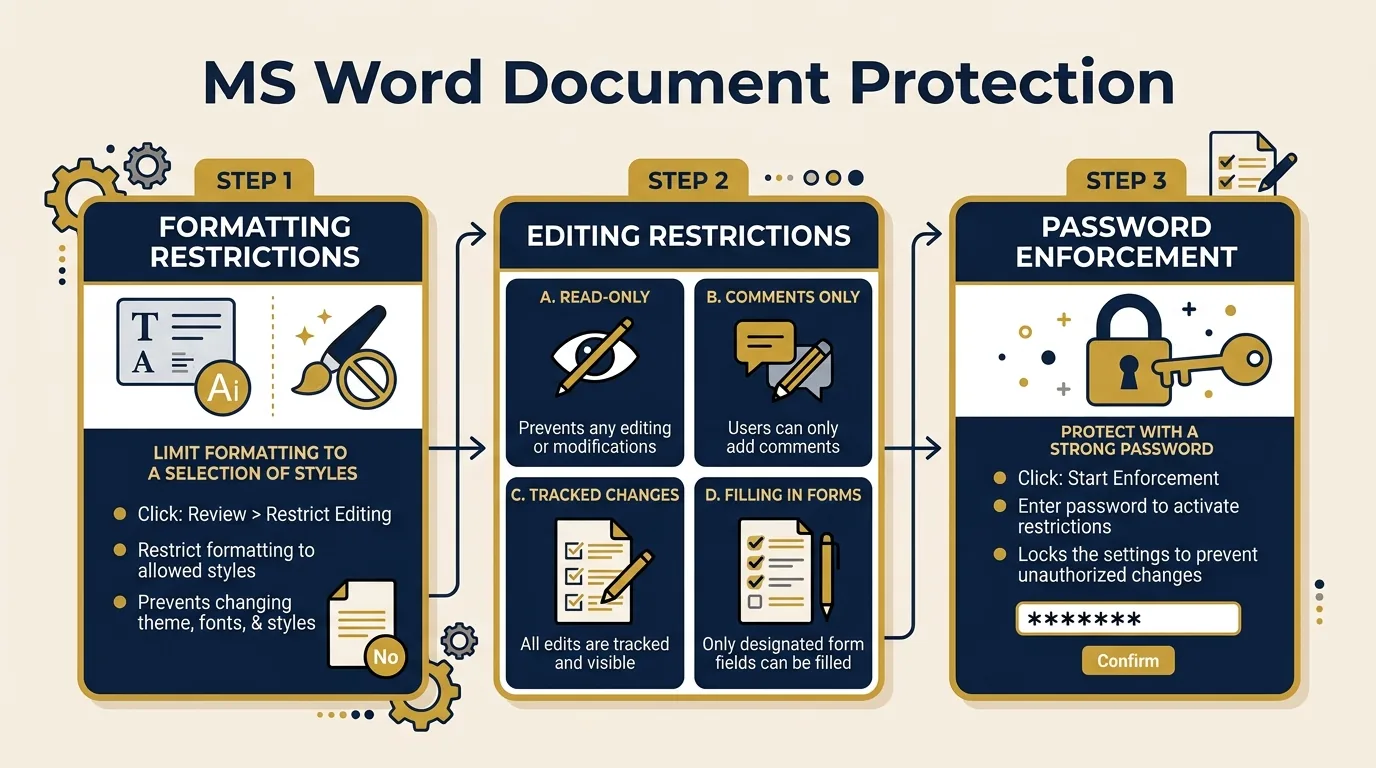
Definition: Document Protection in MS Word enforces security policies that prevent unauthorized users from modifying, formatting, or tampering with document content.
Types of Editing Restrictions:
Completely locks the document into a read-only state; no text additions or deletions are permitted.
Users can read text and add new comment balloons, but cannot edit or alter the body text.
Users can make modifications, but all changes are recorded in Track Changes mode with author attribution.
Restricts interaction strictly to pre-configured form fields (text boxes, drop-downs), leaving body text locked.
Steps to Enforce Password Protection:
- 1Go to the Review Tab → Click Protect Document (or Restrict Editing).
- 2Check 'Allow only this type of editing in the document' and select the restriction mode (e.g., Read-only).
- 3Click 'Yes, Start Enforcing Protection' button.
- 4Enter and confirm a Password → Click OK. (To unlock later, click 'Stop Protection' and enter password).
SCREENSHOT NEEDED: Side-by-side screenshot showing Spelling & Grammar proofing task pane alongside Restrict Editing pane with editing restriction modes and password enforcement dialog.
55. Summary Comparison Table
| Tool / Feature | Ribbon Group | Shortcut Key | Primary Purpose |
|---|---|---|---|
| Spelling & Grammar | Proofing | F7 | Scans and corrects typographical and syntax errors |
| Thesaurus | Proofing | Shift + F7 | Provides dictionary synonyms and antonyms |
| Word Count | Proofing | Ctrl + Shift + G | Displays total count of words, pages, and lines |
| New Comment | Comments | Ctrl + Alt + M | Adds non-destructive feedback in margin balloons |
| Delete Comment | Comments | N/A | Removes selected or all comments from file |
| Restrict Editing | Protect | N/A | Locks document to Read-Only or Comments-Only |
📌 Key Takeaways for Exam Revision
- ✓F7 opens the Spelling and Grammar Check pane; Shift + F7 opens the Thesaurus pane.
- ✓Red wavy underline = Spelling error; Blue/Green wavy underline = Grammatical error.
- ✓Comments (Ctrl + Alt + M) allow non-destructive margin notes for peer review without modifying body text.
- ✓Restrict Editing under the Protect group offers Read-Only, Comments Only, Tracked Changes, and Filling in Forms modes.
- ✓Document security policies are enforced using Password Encryption via the Restrict Editing pane.
66. MCQ & Viva Practice Questions
Test your knowledge with these university exam level multiple-choice questions. Click to reveal the correct answer and explanation.
Frequently Asked Viva Questions (FAQs)
Table of Contents
- 1Introduction to Review Tab
- 2Proofing: Spelling & Grammar
- 3Comments Group: Margin Notes
- 4Protect Group: Security Rules
- 5Summary Comparison Table
- 6MCQ & Viva Practice Questions
PGDCA Semester 1 Syllabus
Access full Office Automation & Computer Fundamentals unit notes.
Explore PGDCA Course →🔗 Related Topics & Next Study Guides
MS Word Interface & Ribbon Layout
Understand Review Tab, Proofing Group, and Status Bar controls.
Document Management: Save & Print
Learn file saving formats, PDF exports, and Print Preview setups.
Find & Replace Operations
Master advanced document editing, wildcard searching, and text replacing.
Advanced Security & Macros
Explore full password encryption, watermark security, and macro automation.