MS Word Insert Tab: Pages, Tables, Illustrations, Headers, Footers & Symbols
Complete exam notes covering Pages, Tables, Illustrations, Headers & Footers, WordArt, Equations (Alt+=), and Symbols.
Siddharth Sharma
M.Sc. CS • FacultyExpert exam walkthrough for DCA-102 and PGDCA-102 Office Automation Unit 1 syllabus.
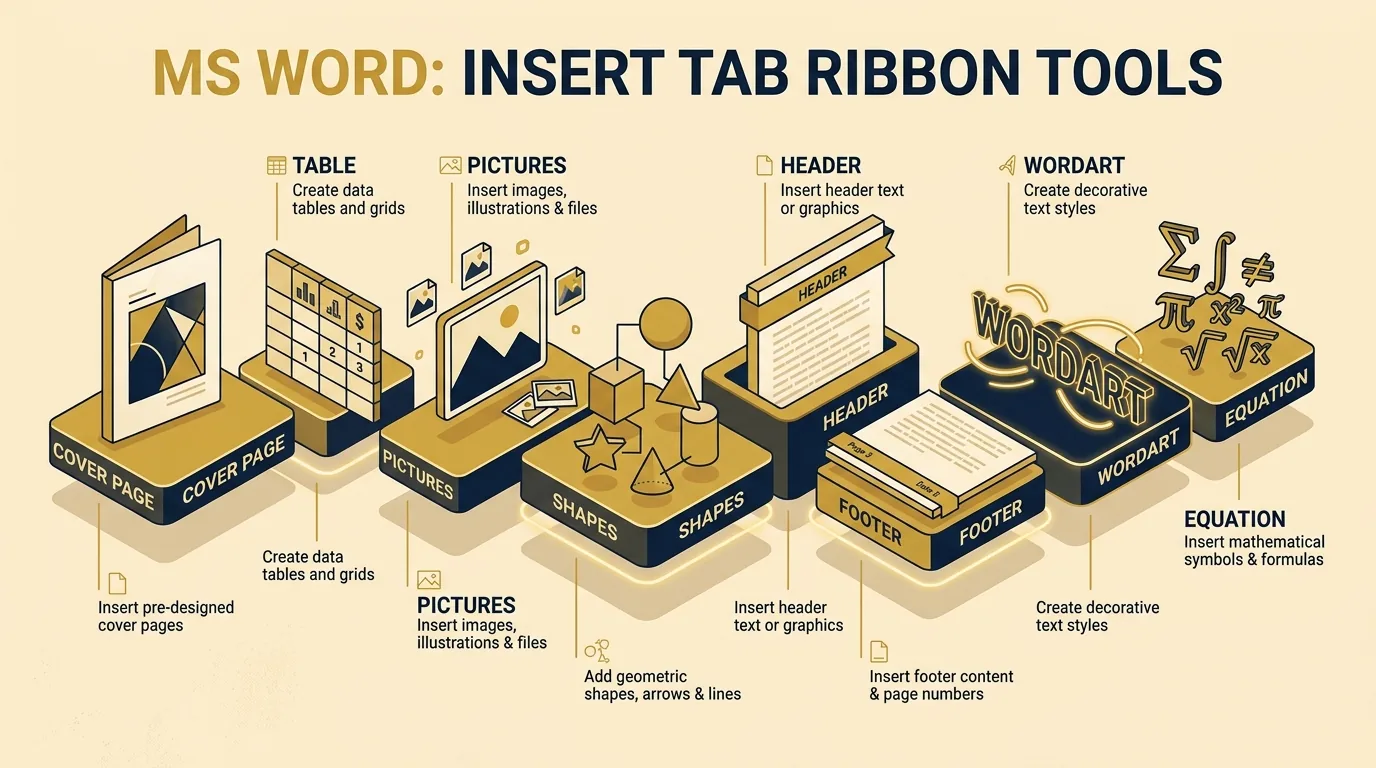
The Insert Tab on the MS Word Ribbon is used to add structural layouts, visual graphics, tabular grids, header metadata, mathematical equations (Alt+=), and non-keyboard symbols into the document workspace.
Introduction to the Insert Tab
Ribbon Layout & Functional Groups
Definition: The Insert Tab on the MS Word Ribbon is used to add structural layouts, visual graphics, tabular grids, header metadata, mathematical equations, and non-keyboard symbols into the document workspace.
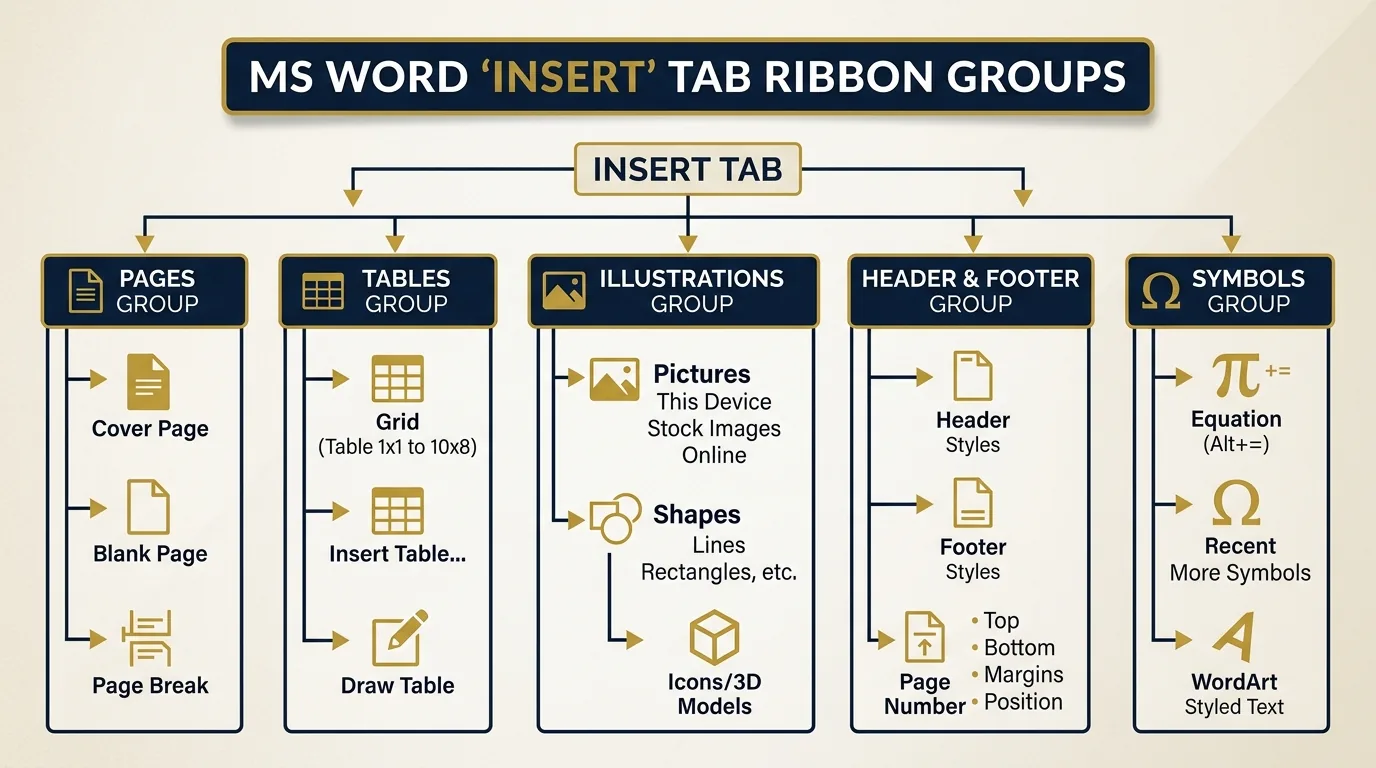
The Insert Tab organizes document elements into distinct functional groups: Pages, Tables, Illustrations, Header & Footer, Text, and Symbols.
Cover/Break
Grid/Custom
Pictures/Shapes
Page Numbers
WordArt
Equations
Pages Group (Cover Page, Blank Page, Page Break)
Insert Tab → Pages Group
The Pages Group controls the layout, structural pacing, and pagination flow of a document:
Cover Page
Inserts a pre-formatted title page template featuring placeholders for Document Title, Subtitle, Author Name, Date, and Abstract.
Blank Page
Inserts a completely new empty page at the current insertion point.
Page Break (Ctrl + Enter)
Terminates the current page and immediately shifts subsequent text to the top of the next page without pressing Enter key repeatedly.
Tables Group (Creating & Structuring Data Tables)
Insert Tab → Tables Group
Definition: A Table is a structured grid formed by the intersection of horizontal Rows and vertical Columns, where each individual box is known as a Cell.
5 Methods of Inserting a Table
- Highlight Grid: Drag mouse over graphical grid blocks (up to 10x8).
- Insert Table Dialog: Specify exact Number of Columns and Number of Rows.
- Draw Table: Manually sketch custom rows/columns using a pencil tool.
- Quick Tables: Ready-made pre-formatted calendar and table layouts.
- Convert Text: Converts tab- or comma-delimited text into a table.
Key Table Operations:
- Contextual Ribbon Tabs: Selecting a table reveals the Table Design Tab (styles, shading, border styles) and Layout Tab (cell insertion, deletion, dimensions, alignment).
- Merge Cells: Combines two or more highlighted adjacent cells into a single continuous cell.
- Split Cells: Divides a single cell into multiple sub-columns or sub-rows.
Illustrations Group (Pictures, ClipArt, Shapes)
Insert Tab → Illustrations Group
The Illustrations Group provides tools to embed visual assets:
Pictures
Inserts digital image files (.jpg, .png, .bmp) stored locally on your Secondary Storage or from online stock sources.
ClipArt / Stock Images
Inserts built-in vector graphics, diagrams, illustrations, and stock images from Office library.
Shapes
Draws geometric forms (Rectangles, Circles, Arrows, Callouts, Flowchart Symbols). Holding Shift while drawing constrains the shape to a perfect square or circle.
Text Wrapping
Sets how document text wraps around inserted images (In Line with Text, Square, Tight, Behind Text, In Front of Text).
Header & Footer Group (Headers, Footers, Page Numbers)
Insert Tab → Header & Footer Group
Definition: Headers are recurring content areas located in the top margin of each page, while Footers occupy the bottom margin.
| Element | Description & Functionality |
|---|---|
| Header | Displays persistent information such as Document Title, Chapter Name, Subject Name, or Institutional Logo. |
| Footer | Displays Author Name, Date/Timestamp, Confidentiality Notice, or File Path. |
| Page Number | Automatically inserts sequential page numbers with selectable positions (Top of Page, Bottom of Page, Page Margins) and formatting styles (1, 2, 3 or i, ii, iii). |
| Different First Page | Suppresses headers and footers on the cover page while keeping them active on subsequent pages. |
Text & Symbols Group (WordArt, Equations, Symbols)
Insert Tab → Text Group & Symbols Group
A. WordArt
A decorative typography tool that applies gradient colors, 3D outlines, shadows, reflections, and glow transformations to text strings for titles and headings.
B. Equation (Alt + =)
A mathematical formula editor that allows constructing complex expressions including Fractions (a/b), Integrals (∫), Radicals (√x), Matrices, and Summations (∑).
C. Symbols (Physical Keyboard Glyphs)
Inserts special characters not present on a standard physical keyboard (e.g., Copyright ©, Registered Trademark ®, Greek letters α, β, π, Ω, currency symbols €, £, ¥).
MS Word Insert Tab Ribbon Groups Visual Diagram
Summary Comparison Table / तुलनात्मक सारांश तालिका
Quick Reference Table
| Tool / Component | Group Location | Shortcut Key | Primary Purpose |
|---|---|---|---|
| Page Break | Pages Group | Ctrl + Enter | Pushes text to the next page |
| Insert Table | Tables Group | N/A | Structures tabular & numerical data |
| Shapes | Illustrations Group | N/A | Draws flowcharts, geometric shapes & arrows |
| Header & Footer | Header & Footer Group | N/A | Adds recurring top & bottom margin metadata |
| WordArt | Text Group | N/A | Creates decorative typographic text |
| Equation | Symbols Group | Alt + = | Builds mathematical equations |
| Symbol | Symbols Group | N/A | Inserts special characters (©, ®, π) |
Key Takeaways for Exam Revision
- Ctrl + Enter forces a manual Page Break.
- A Table consists of intersecting Rows and Columns forming Cells.
- Selecting a table opens the contextual Table Design and Layout tabs.
- Headers sit in top margins; Footers sit in bottom margins.
- WordArt adds artistic text styling; Equation (Alt + =) builds mathematical formulas.
Summary Bullet Points
- (1) Insert Tab handles all non-plain text elements.
- (2) Ctrl+Enter is the quickest shortcut for Page Break.
- (3) Tables can be inserted via Grid, Dialog, Draw Table, Quick Tables, or Convert Text.
- (4) Alt+= instantly launches the mathematical Equation Editor.
8. MCQ & Viva Practice Questions
Frequently Asked Questions (FAQs)
What are the primary groups available on the MS Word Insert Tab?
What is the difference between Merge Cells and Split Cells in MS Word Tables?
How do you open the Equation editor quickly in MS Word?
Fast Index TOC
- 1. Introduction to Insert Tab
- • Pages Group (Cover, Break)
- • Tables Group (5 Methods)
- • Illustrations & Shapes
- • Header & Footer Group
- • WordArt, Equations & Symbols
- Summary Comparison Table
- MCQ & Viva Practice Questions