MS Word Mailings Tab: Envelopes, Labels & Mail Merge Architecture
Complete exam notes detailing Envelopes, Labels, Mail Merge Architecture, 3 Core Components, and 6 Step Wizard execution.
Siddharth Sharma
M.Sc. CS • FacultyExpert exam walkthrough for DCA-102 and PGDCA-102 Office Automation Unit 1 syllabus.
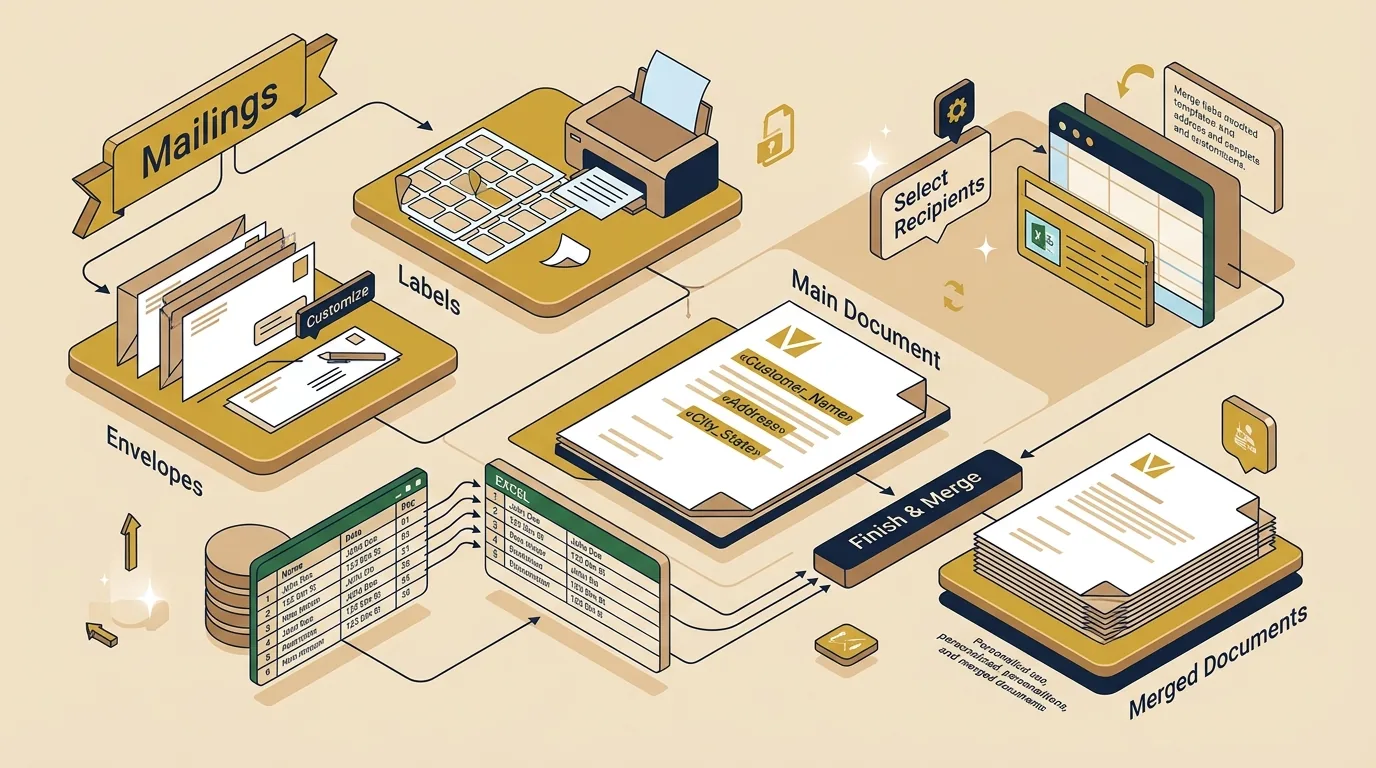
The Mailings Tab centralizes tools for mass correspondence, including formatting postal Envelopes and adhesive sticker Labels, as well as executing database-driven Mail Merge using 3 Core Components (Main Document, Data Source, Merged Document) across 6 Wizard steps.
1. Introduction to the Mailings Tab
Ribbon Layout & Mass Correspondence Tools
Definition: The Mailings Tab on the MS Word Ribbon centralizes all tools needed for mass correspondence, automated postal delivery, packaging, and database-driven document generation.
The Mailings Tab is organized into five functional groups: Create, Start Mail Merge, Write & Insert Fields, Preview Results, and Finish.
Envelopes, Labels
Select Recipients, Wizard
Insert Merge Field
Preview Records
Finish & Merge
2. Create Group: Envelopes and Labels
Mailings Tab → Create Group
The Create Group enables rapid formatting and printing of physical mailing covers without requiring a complex database setup.
A. Creating Envelopes (डाक लिफ़ाफ़े)
Customizes layout, paper feed direction, and typographic positioning for standard postal envelopes (Size 10, DL, C5).
- Delivery Address: The recipient's postal address.
- Return Address: Sender's address (can be omitted by checking Omit).
- Feed Method: Configures tray orientation (Face Up / Face Down, Left / Center / Right).
- Actions: Click Print to send directly to printer or Add to Document to attach as Page 0.
B. Creating Labels (स्टीकर लेबल्स)
Generates sheets of adhesive sticker labels used for mailing packages, product barcodes, file folders, or event name tags.
- Full Page of Same Label: Prints exact same address across every sticker cell on the sheet.
- Single Label: Prints on one specific sticker cell by defining Row and Column coordinates.
- Label Vendors: Supports pre-configured standards from vendors like Avery US Letter, A-One, Formtec.
3. Understanding Mail Merge Architecture
Automated Document Production Engine
Definition: Mail Merge is an automated document production engine that links a standard template document with an external structured database, automatically generating personalized bulk letters, invitations, invoices, certificates, or envelopes.
Key Advantages of Mail Merge
- Time Efficiency (समय की बचत): Generates thousands of personalized letters in minutes instead of manually typing each one.
- Accuracy (सटीकता): Eliminates manual data entry errors and typos across recipient records.
- Reusability (पुनः उपयोग): The same data source can be reused across letters, labels, envelopes, and reports.
4. The 3 Core Components of Mail Merge
Structural Interdependent Elements
1. Main Document (मुख्य दस्तावेज़)
Contains static text, corporate letterheads, paragraphs, and formatting that remains identical for all recipients, plus placeholder tags called Merge Fields (e.g., «First_Name», «City», «Balance_Due»).
2. Data Source (डेटा स्रोत)
Structured external database holding dynamic individual details organized in Rows (Records) and Columns (Fields). Supported formats: MS Excel (.xlsx), MS Access (.accdb), Outlook Contacts, or CSV files.
3. Merged Document (मर्ज किया गया दस्तावेज़)
The final output generated by merging Main Document with each record from Data Source. Can be sent directly to printer or saved as a multi-page file for individual editing.
5. Step-by-Step Execution of Mail Merge
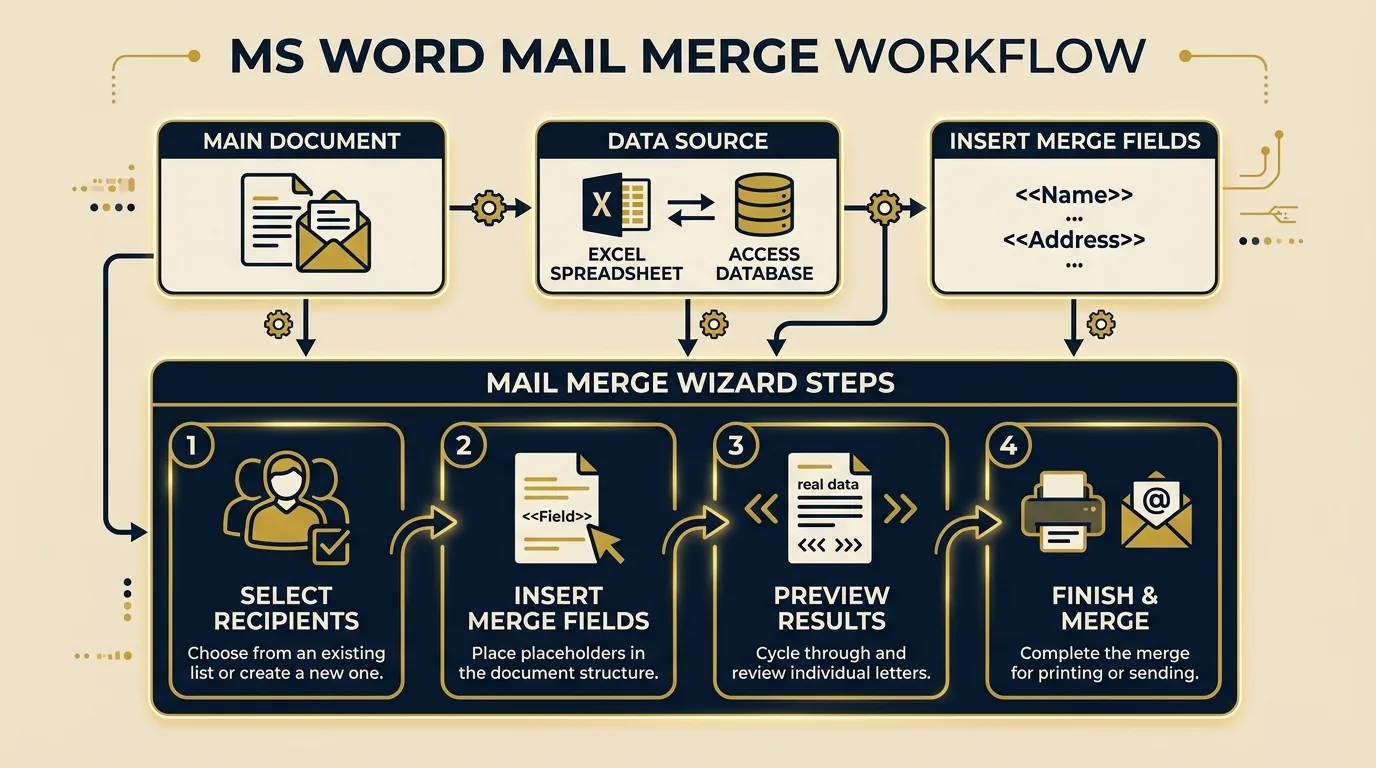
Mail Merge Wizard 6 Sequential Steps
6 STEPS OF THE MAIL MERGE WIZARD
- Start Mail Merge: Go to Mailings Tab → Click Start Mail Merge → Choose Step-by-Step Mail Merge Wizard (or choose document type directly: Letters).
- Select Starting Document: Select "Use the current document".
- Select Recipients: Click Browse under "Use an existing list" and select your structured Excel workbook or Access table.
- Insert Merge Fields: Place blinking cursor at desired position → click Insert Merge Field on Ribbon → select fields (e.g., «Customer_Name», «Due_Amount»).
- Preview Results: Click Preview Results on Ribbon to inspect how actual recipient data replaces double chevron placeholders. Use arrow controls to cycle records.
- Finish & Merge: Click Finish & Merge → choose Edit Individual Documents (generates single file containing all letters) or Print Documents.
Mail Merge Workflow Diagram Visual
Summary Comparison Table / तुलनात्मक सारांश तालिका
Quick Reference Table
| Mailings Feature | Primary Purpose | Required Input | Final Output |
|---|---|---|---|
| Envelopes | Postal cover printing | Delivery & Return addresses | Formatted envelope layout |
| Labels | Sticky address/barcode sheets | Single address or data grid | Sheet of individual label stickers |
| Main Document | Static letter blueprint | Standard text & layout | Master template with merge tags |
| Data Source | Holds recipient records | Excel / Access / CSV table | Structured database table |
| Merged Document | Personalized end product | Combined template + data | Multi-page personalized letters |
Key Takeaways for Exam Revision
- The Mailings Tab contains tools for Envelopes, Labels, and Mail Merge.
- Envelopes format Delivery and Return addresses; Labels generate sheets of adhesive stickers.
- The three components of Mail Merge are: Main Document, Data Source, and Merged Document.
- Merge Fields appear enclosed inside double chevrons (e.g., «Name»).
- The Mail Merge Wizard consists of 6 sequential steps.
- The final step (Finish & Merge) allows editing individual letters or printing directly.
Summary Bullet Points
- (1) Mailings Tab handles all automated mass correspondence tools.
- (2) Envelopes print delivery and return postal addresses.
- (3) Labels print adhesive sticker sheets for mailing or product tags.
- (4) Mail Merge links Main Document + Data Source into Merged Documents in 6 steps.
7. MCQ & Viva Practice Questions
Frequently Asked Questions (FAQs)
What is the primary purpose of the Mailings Tab in MS Word?
What are the 3 essential components of Mail Merge architecture?
What is the difference between Full Page of Same Label and Single Label in MS Word?
Fast Index TOC
- 1. Introduction to Mailings Tab
- • Envelopes & Labels Creation
- • Mail Merge Architecture
- • 3 Core Components
- • 6 Step Wizard Execution
- Summary Comparison Table
- MCQ & Viva Practice Questions
Related Topics
MS Word Interface & Ribbon Layout
Mailings Tab, Ribbon Tabs, and Groups structure.
Section Breaks & Advanced Page Setup
Page layout settings, section breaks, and continuous breaks.
Document Management: Save, Open & Print
Printing options, envelope printing, and file management.
Tables & Formatting Tools
Tables structure, merge cells, and data formatting.