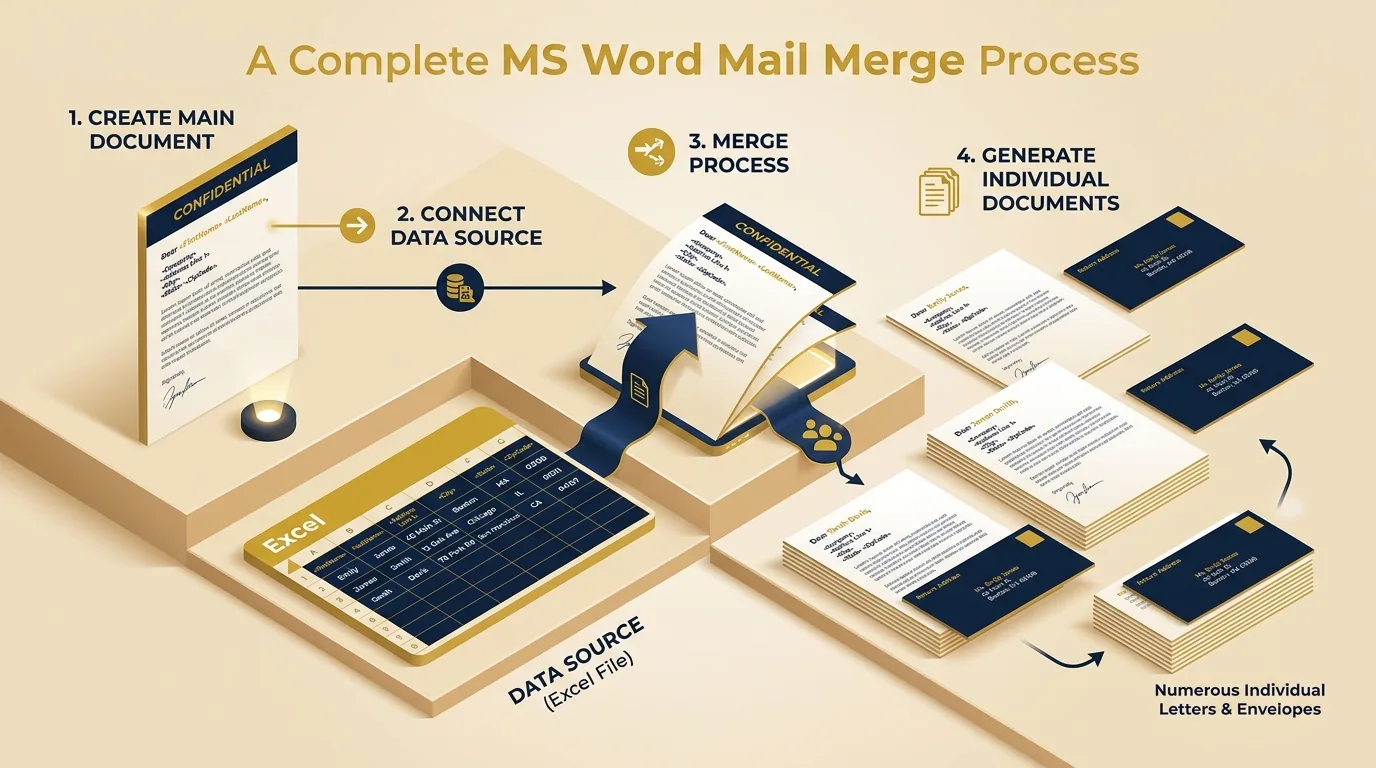
Mail Merge in MS Word
Complete concept, 3 essential components, step-by-step procedure wizard, supported data sources, and exam-oriented points.
Siddharth Sharma
M.Sc. CS • FacultyExpert exam walkthrough for DCA-102 and PGDCA-102 Office Automation syllabus.
Mail Merge = a feature that combines one fixed template document (like a letter) with a data source (like a list of names/addresses) to automatically generate multiple personalized copies — one for each record — without typing each one manually.
Mail Merge — Concept in Detail
Mailings Tab → Start Mail Merge
1Meaning / परिभाषा
Mail Merge is a feature in MS Word that allows the user to create a batch of personalized documents (letters, envelopes, labels, emails, certificates, etc.) by merging a single main document (containing fixed/common text and merge fields) with a data source (containing variable data such as names, addresses, roll numbers). The result is one unique, personalized document generated automatically for every single record in the data source.
2Why Mail Merge is Needed / जरूरत क्यों है
Without Mail Merge, if you need to send the same letter to 100 different people with their individual names and addresses, you would have to type/edit all 100 letters manually — a slow and error-prone task. Mail Merge automates this entire process, producing all 100 personalized letters in seconds.
3Real-Life Applications / वास्तविक उपयोग
| # | Use Case / Application Description |
|---|---|
| 1 | Sending admission/invitation letters to many students with different names |
| 2 | Printing exam mark sheets / certificates for a whole class |
| 3 | Generating address labels or envelopes for bulk mailing |
| 4 | Sending personalized emails to a mailing list |
| 5 | Payslips or ID cards for employees |
4Three Essential Components of Mail Merge / तीन आवश्यक Components
| Component | Description |
|---|---|
| Main Document | The template containing fixed/common text (same for all recipients) plus placeholders called 'merge fields'. |
| Data Source | A file (Excel sheet, Word table, Access database, Outlook contacts) containing variable data — one row per recipient, one column per field. |
| Merge Fields | Placeholders inserted in main document (e.g., «FirstName», «Address») that get replaced by actual data from data source during merge. |
Mail Merge — How It Works
Dear «FirstName»,
Your roll no is «RollNo».
Name | RollNo
Aman | 101
Priya | 102
Dear Aman, Roll 101
Dear Priya, Roll 102
Merge Fields = «FirstName», «RollNo» placeholders in Main Document get replaced by actual data.
5Step-by-Step Procedure (Using Mail Merge Wizard) / चरणबद्ध विधि
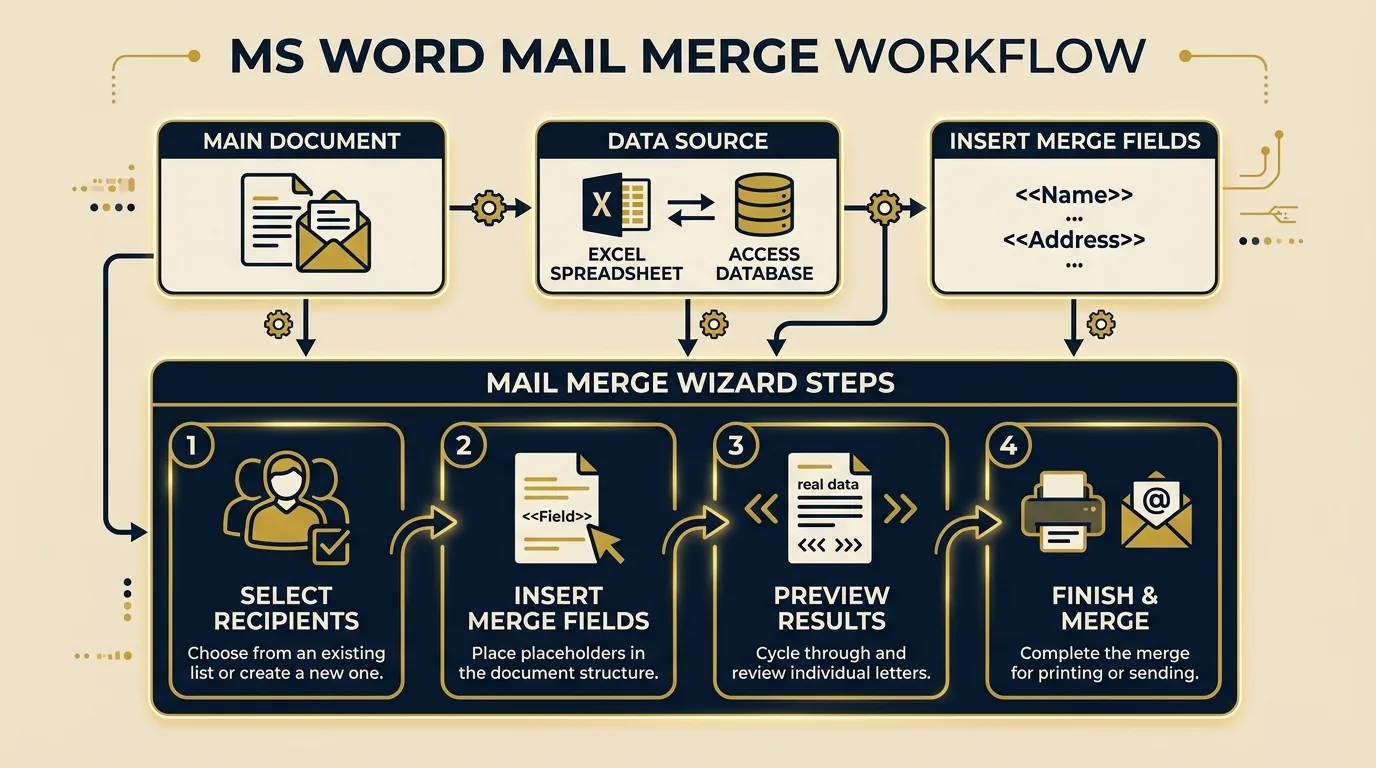
- Open MS Word and go to the Mailings tab.
- Click Start Mail Merge → choose document type: Letters, E-mail Messages, Envelopes, Labels, or Directory.
- (Optional but recommended) Click Start Mail Merge → Step-by-Step Mail Merge Wizard to be guided through all steps.
- Click Select Recipients → choose Use an Existing List (e.g., Excel sheet) → browse and select your data file.
- Click Edit Recipient List to review/filter data, and untick any records you want to exclude.
- Type the fixed/common text of your letter in the main document.
- Place the cursor where variable data should appear, then click Insert Merge Field and choose the field (e.g., FirstName, Address, RollNo).
- Repeat for all required fields until the letter template is complete.
- Click Preview Results to see how the merged document will look for each record, and use arrows to check other records.
- Click Finish & Merge → choose Edit Individual Documents (creates new merged file), Print Documents, or Send E-mail Messages.
6Supported Data Source Types / समर्थित Data Source प्रकार
| Data Source Type | Example / Description |
|---|---|
| MS Excel worksheet | Student list with Name, Roll No, Marks columns |
| MS Word table/document | A typed table of names and addresses |
| MS Access database | A table from a database file (.accdb) |
| Outlook Contacts | Contact list saved in Outlook |
| Type a New List | Manually entered data directly inside Word's Mail Merge wizard |
7Output Types of Mail Merge / Output के प्रकार
| Output Type | Description |
|---|---|
| Letters | Personalized letters, one per recipient |
| E-mail Messages | Sends personalized emails directly via Outlook |
| Envelopes | Prints addresses directly onto envelopes |
| Labels | Prints multiple address labels on a single sheet |
| Directory | Combines all records into a single list/catalog document (not separate pages) |
Mail Merge Workflow Flowchart Visual
Exam Point / Viva Question
Mail Merge requires exactly 3 components — Main Document, Data Source, and Merge Fields — this is the most frequently asked definition question in exams. Also remember Ribbon location: Mailings tab, and wizard steps order (Select Recipients → Insert Merge Field → Preview Results → Finish & Merge).
Key Points to Remember
- (1) Mail Merge = Main Document + Data Source + Merge Fields.
- (2) Located under the "Mailings" tab on the Ribbon.
- (3) Data source can be Excel, Word table, Access, Outlook Contacts, or a new list.
- (4) "Preview Results" lets you check the merge before finalizing.
- (5) "Finish & Merge" offers 3 options: Edit Individual Documents, Print Documents, Send E-mail Messages.
- (6) Saves significant time for bulk personalized documents (letters, labels, certificates).
Practice MCQs (Click an option to check)
Frequently Asked Questions (FAQs)
What are the 3 essential components of Mail Merge in MS Word?
What files can be used as a Data Source for Mail Merge?
What is the difference between 'Edit Individual Documents' and 'Print Documents'?
Fast Index TOC
- Mail Merge Concept & Purpose
- • 3 Essential Components
- • How It Works Diagram
- Step-by-Step Wizard Procedure
- • Supported Data Source Types
- • Output Types (Letters, Labels, Emails)
- Practice MCQs & Answers
Related MS Word Topics
MS Word Header & Footer + Find & Replace
Header/footer margins, Different First Page, and Ctrl+H search tools.
MS Word Bullets & Numbering + Proofing
Multilevel lists, F7 shortcut, and red/blue wavy underlines.
MS Word Features and Advantages & Format Painter
Word processing definition, 12 features, 8 advantages, and Format Painter.