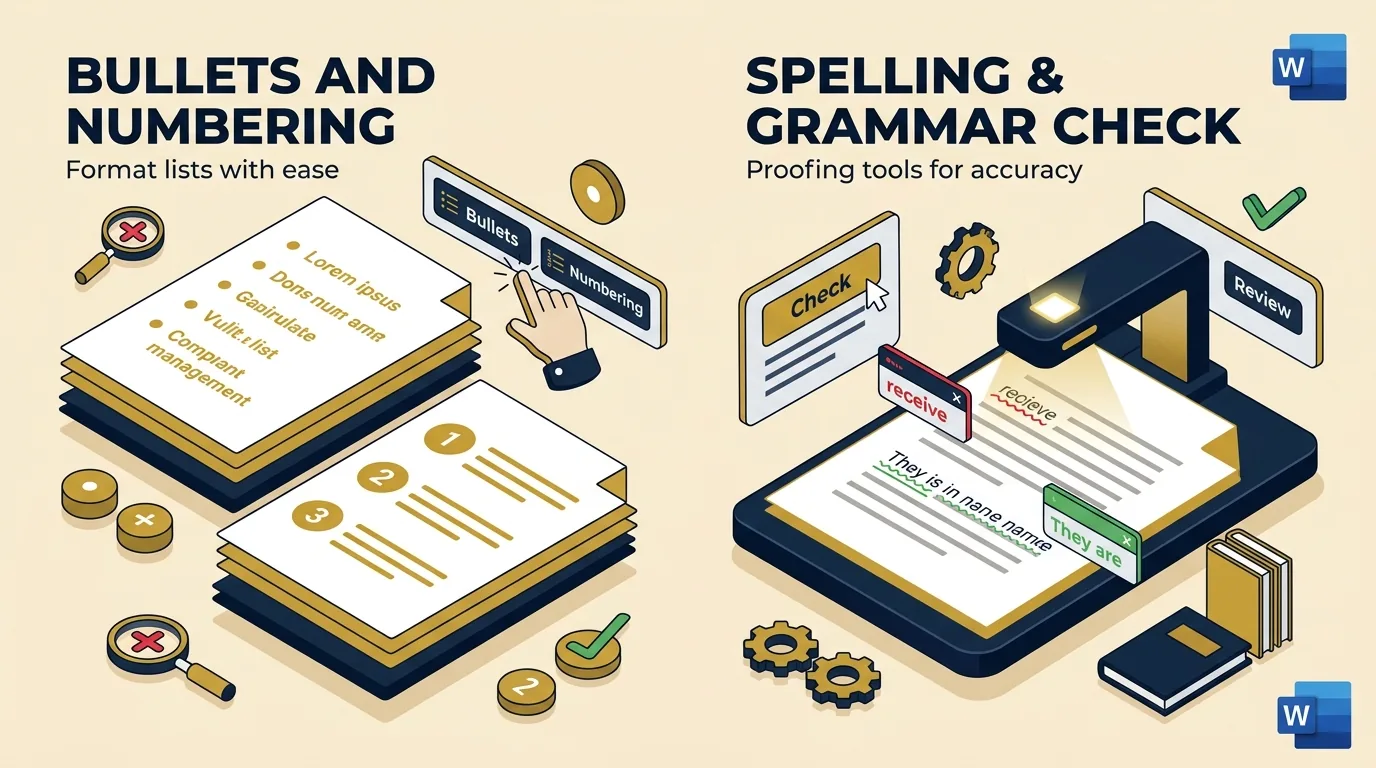
Bullets & Numbering + Spelling and Grammar Check
Detailed step-by-step procedures with examples, exam-oriented points, keyboard shortcuts, and underline color rules for college exams.
Siddharth Sharma
M.Sc. CS • FacultyExpert exam walkthrough for DCA-102 and PGDCA-102 Office Automation syllabus.
Bullets and Numbers = formatting tool to convert plain paragraphs into ordered/unordered lists automatically. Spelling and Grammar Check = built-in proofing tool that scans the document for spelling errors (red underline) and grammar errors (blue/green underline) and suggests corrections.
Bullets and Numbering
Home Tab → Paragraph Group
1Meaning / परिभाषा
Bullets and Numbering is a formatting feature in MS Word used to organize a list of items in a document. Bullets are symbols (•, ○, ■, ➤, etc.) placed before each item when the order/sequence does not matter. Numbering places sequential numbers or letters (1, 2, 3 / a, b, c / i, ii, iii) before each item when the order does matter.
2Purpose / उद्देश्य
- ✓Points in an assignment, notice, or report
- ✓Step-by-step instructions (numbered)
- ✓Unordered features/advantages lists (bulleted)
- ✓Multi-level outlines (main point → sub-point)
3Procedure to Apply Bullets / Numbering (Steps) / लगाने की विधि
Method 1 — Applying to existing text:
- Select (highlight) the paragraphs/lines you want to convert into a list.
- Go to the Home tab → Paragraph group.
- Click the Bullets icon (•≡) for a bulleted list, or the Numbering icon (1≡) for a numbered list.
- Click the small drop-down arrow next to the icon to choose a different bullet symbol or numbering style (1,2,3 / A,B,C / i,ii,iii).
Method 2 — Applying while typing:
- Click the Bullets or Numbering icon before typing.
- Type each item and press Enter — the next bullet/number appears automatically.
- Press Enter twice (on a blank line) or click the icon again to stop the list.
4Multilevel List (Sub-points) / Multilevel List
To create a multilevel (nested) list with main points and sub-points:
1. Click Multilevel List icon in Paragraph group and choose a style.
➔ Press Tab to demote item to next sub-level.
➔ Press Shift + Tab to promote item back to previous level.
5Customizing Bullets / Numbering Options
| Option | Function / Capability |
|---|---|
| Define New Bullet | Use a custom symbol or picture as the bullet |
| Define New Number Format | Choose custom number style and starting value |
| Set Numbering Value | Restart or continue numbering from a specific number |
| Change List Level | Move an item to a specific outline level directly |
Bulleted vs Numbered List Comparison
| Bulleted List | Numbered List |
|---|---|
| • Feature A • Feature B • Feature C (order does not matter) | 1. Open Word 2. Type text 3. Save file (sequence/order matters) |
Exam Point / Viva Question
Bullets/Numbering icons are located in Home tab → Paragraph group. Tab = demote (go to sub-level), Shift+Tab = promote (go to previous level) — this Tab/Shift+Tab shortcut pair is frequently asked.
Key Points to Remember
- (1) Bullets = symbols, used when order doesn't matter.
- (2) Numbering = sequential numbers/letters, used when order matters.
- (3) Multilevel List creates nested outlines using Tab/Shift+Tab.
- (4) Both are found in Home tab → Paragraph group.
Spelling and Grammar Check
Review Tab → Proofing Group (F7 Key)
1Meaning / परिभाषा
Spelling and Grammar Check is a built-in proofing tool in MS Word that automatically scans the entire document to detect spelling mistakes and grammatical errors, underlines them, and suggests possible corrections that the user can accept, ignore, or edit manually.
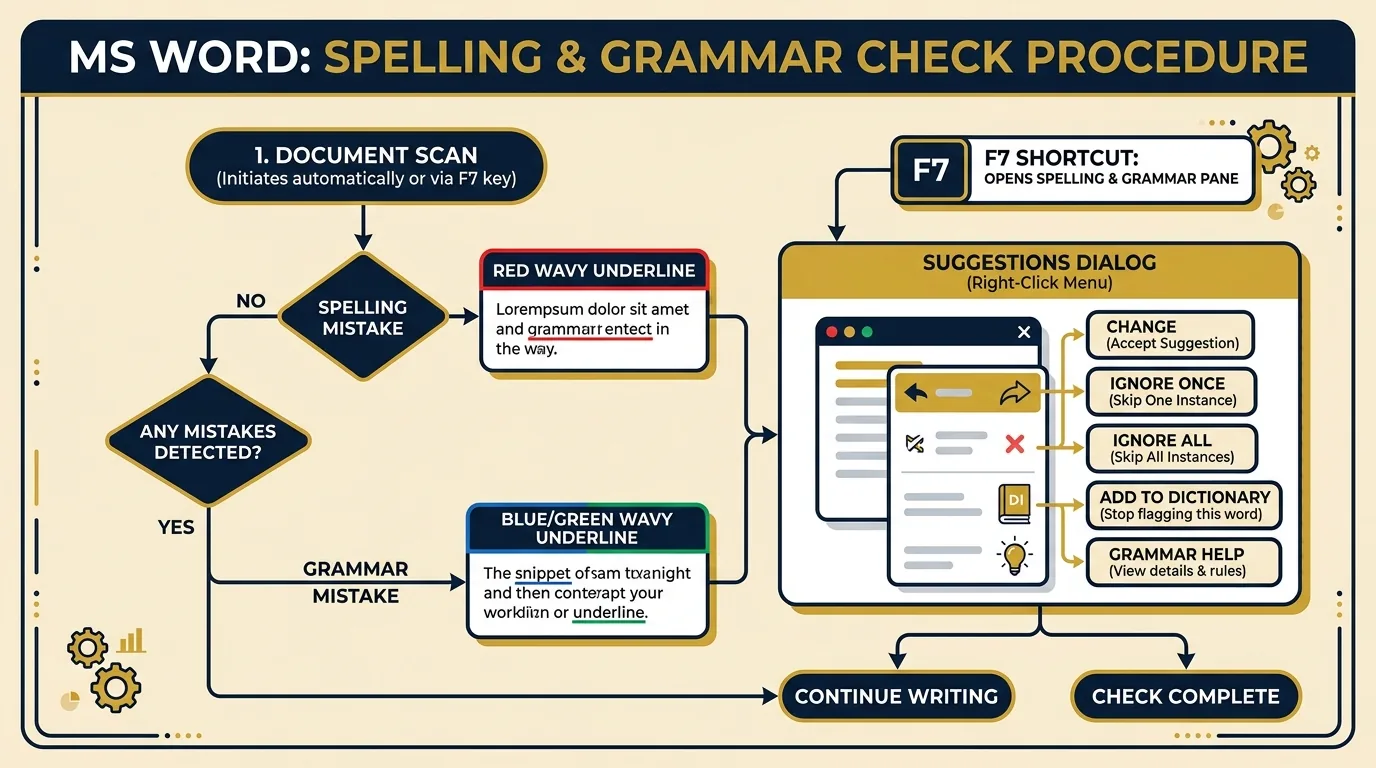
2Types of Underline Indicators / Underline के प्रकार
| Underline Color | Meaning / Explanation |
|---|---|
| Red wavy underline | Possible spelling mistake or unrecognized word |
| Blue / Green wavy underline | Possible grammar mistake (subject-verb agreement, tense, punctuation) |
3Procedure to Run Spelling & Grammar Check / जाँच करने की विधि
Method 1 — Full document check via Ribbon (or F7 shortcut):
- Go to the Review tab on the Ribbon.
- In the Proofing group, click Spelling & Grammar (or press F7).
- A pane/dialog box opens showing the first detected error, along with suggestions.
- Choose an action: Change (accept suggestion), Ignore Once, Ignore All, or Add to Dictionary (for proper nouns).
- Word moves automatically to the next detected error until the whole document is checked.
- A message appears when the check is complete ('The spelling and grammar check is complete').
Method 2 — Quick fix via right-click:
- Right-click directly on the word with the red/blue wavy underline.
- A shortcut menu shows suggested correct spellings/grammar fixes.
- Click the correct suggestion to replace the word instantly.
Spelling & Grammar Check Flowchart Visual
4Related Proofing Settings
| Setting | Location & Function / कार्य |
|---|---|
| Check spelling as you type | File → Options → Proofing — toggles automatic red underline while typing |
| Mark grammar errors as you type | File → Options → Proofing — toggles automatic blue/green underline |
| Custom Dictionary | Stores words added via "Add to Dictionary" so they are not flagged again |
| Set Proofing Language | Review tab → Language — changes dictionary used (e.g., English UK vs US) |
Exam Point / Viva Question
F7 is the shortcut for Spelling & Grammar check. Remember color codes: RED = spelling mistake, BLUE/GREEN = grammar mistake. 'Add to Dictionary' prevents a correctly-spelled special word from being flagged again in future.
Key Points to Remember
- (1) Shortcut key = F7.
- (2) Located in Review tab → Proofing group.
- (3) Red underline = spelling; Blue/Green underline = grammar.
- (4) Right-click on underlined word gives a quick-fix menu.
- (5) Custom/Add to Dictionary avoids repeated false flags for proper nouns or technical terms.
Practice MCQs (Click an option to check)
Frequently Asked Questions (FAQs)
What is the difference between Bullets and Numbering in MS Word?
How do you change nested list levels using keyboard shortcuts?
What do the red and blue/green wavy underlines mean in MS Word?
Fast Index TOC
- (a) Bullets & Numbering Procedure
- • Multilevel List (Tab / Shift+Tab)
- • Customizing Options & Comparison
- (b) Spelling & Grammar Check
- • Underline Colors (Red vs Blue/Green)
- • Review Tab & F7 Key Steps
- Practice MCQs & Answers
Related MS Word Topics
MS Word Formatting, Borders & Watermarks
Page borders, watermarks, paragraph shading, and character formatting.
MS Word Features and Advantages & Format Painter
Word processing definition, 12 features, 8 advantages, and Format Painter.
MS Word Editing & Clipboard Tools
Cut, copy, paste, find and replace, undo and redo procedures.